Create Images from Text
Turn written prompts into original AI images online. Describe the subject, style, and composition, then generate and refine your result.
Quick start
How to Turn Text into an Image
A text-to-image generator converts a written prompt into a new image. Start with the main subject, add useful creative direction, and choose the format before you generate.
- 1
Write a clear text prompt
Name the subject first, then add style, setting, composition, lighting, colors, or exact words that should appear in the image.
- 2
Choose the model and format
Select a model for speed or detail, choose an aspect ratio, and decide whether you want one result or several variations.
- 3
Generate, compare, and refine
Create the image, keep the strongest result, then adjust the prompt or switch models when you want a different interpretation.
Text-to-Image Examples and Prompts
See images created from real text prompts. Click an example to place its prompt in the generator and adapt it to your idea.
What You Can Create with Text-to-Image AI
Create images from text prompts
Describe a subject, setting, style, lighting, and camera angle in natural language. The generator turns those details into a complete image.
Explore visual ideas quickly
Generate fast drafts when you are testing a concept, then refine the strongest composition instead of starting over each time.
Make marketing and product visuals
Create product scenes, social graphics, poster concepts, thumbnails, and campaign artwork from one written brief.
Keep a consistent art direction
Repeat important details such as palette, character traits, materials, and lighting to build a more consistent visual series.
Generate multiple variations
Create several versions of a prompt, compare the compositions, and continue with the result that best matches your idea.
Create images in the right format
Choose square, portrait, landscape, widescreen, or vertical framing before generation so the composition fits its final use.
Turn a prompt into something you can use
Direct the look, choose the right model, and compose the image for the place it needs to work.
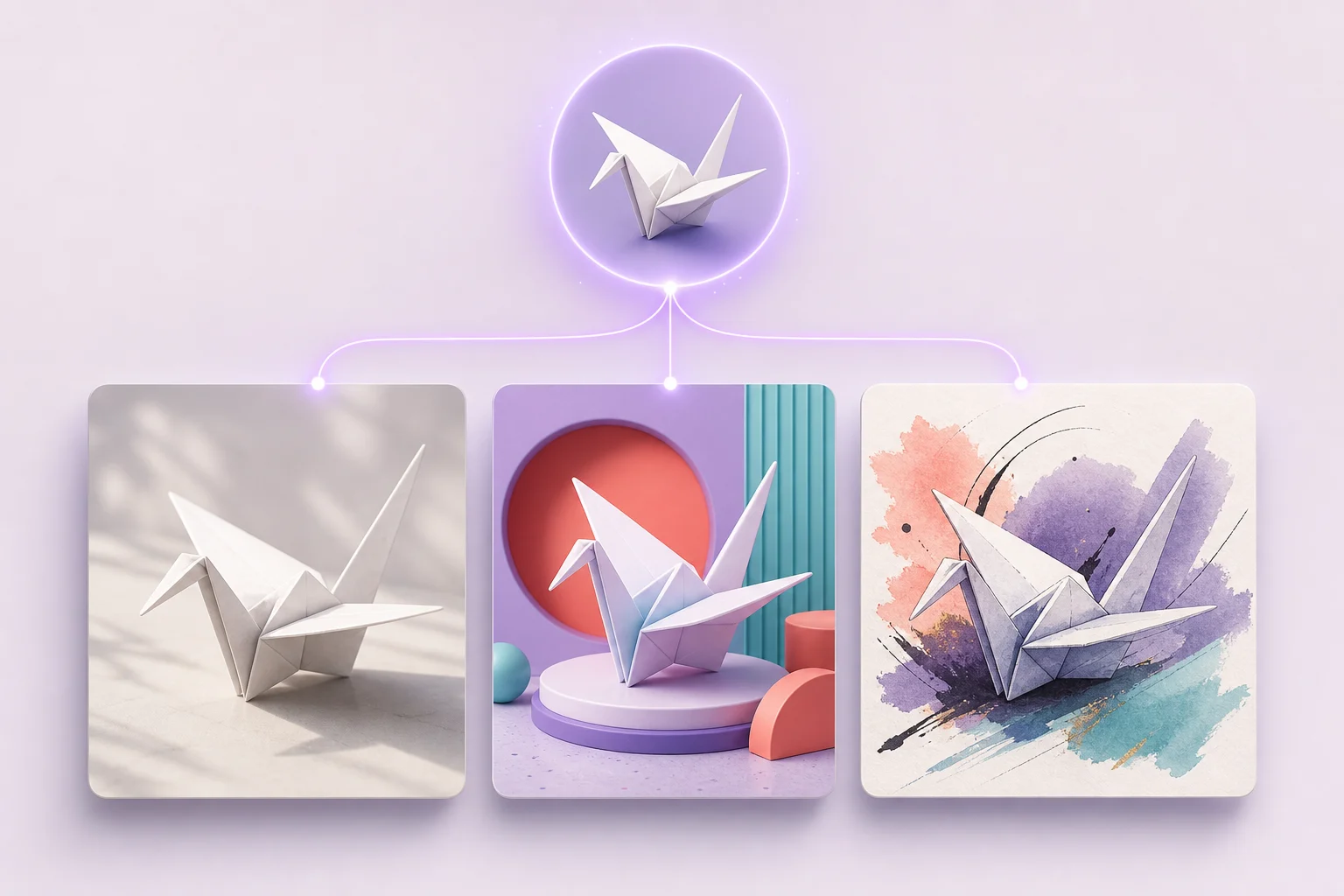
One prompt, several ways to render it
Keep the idea constant and switch between FLUX.2, Nano Banana Pro, GPT Image 2, and Seedream 5.0 Pro to compare speed, detail, layout control, and reference handling without rebuilding your prompt.
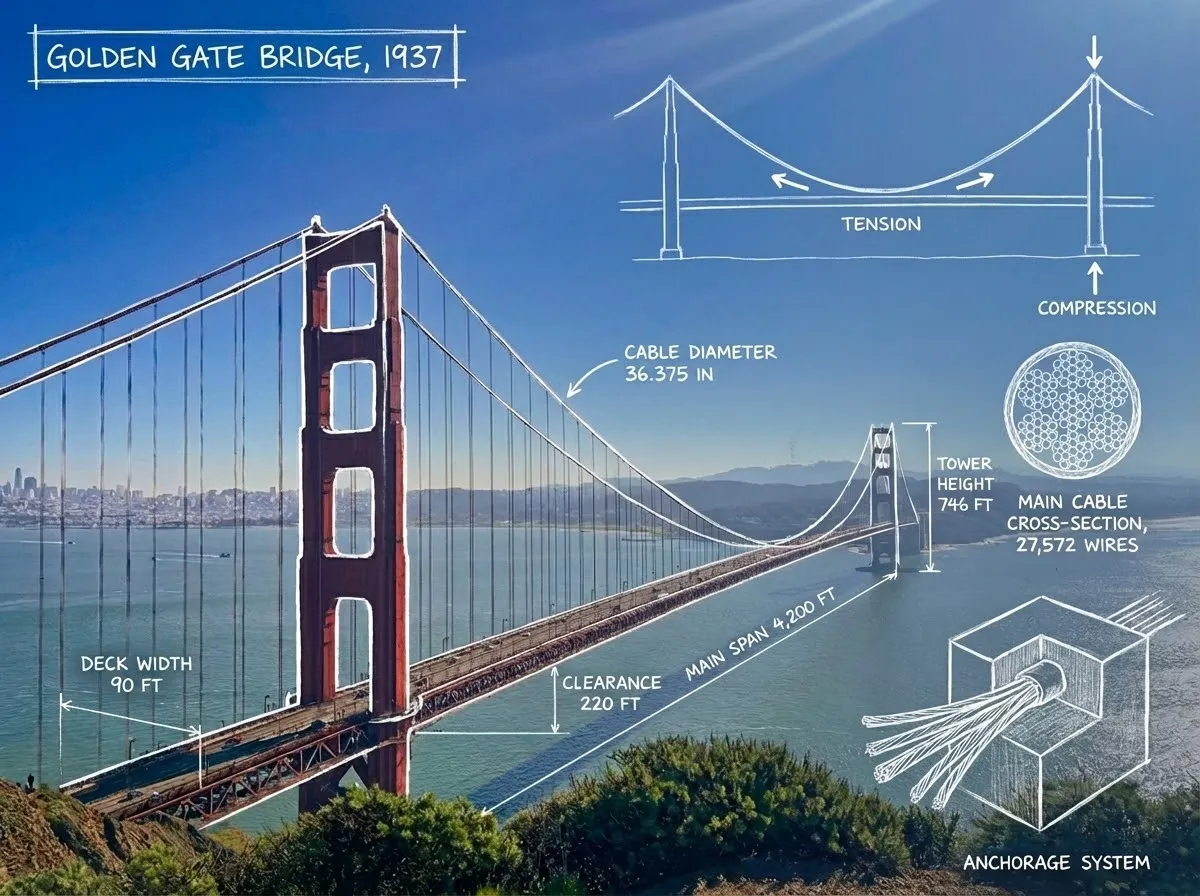
Make text part of the image
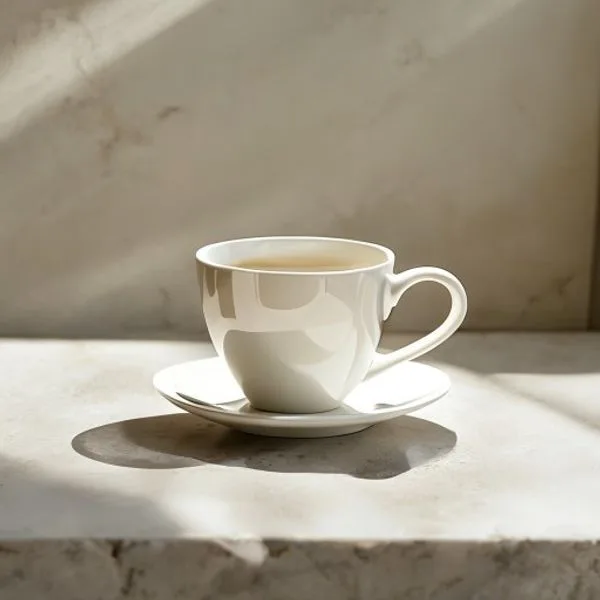
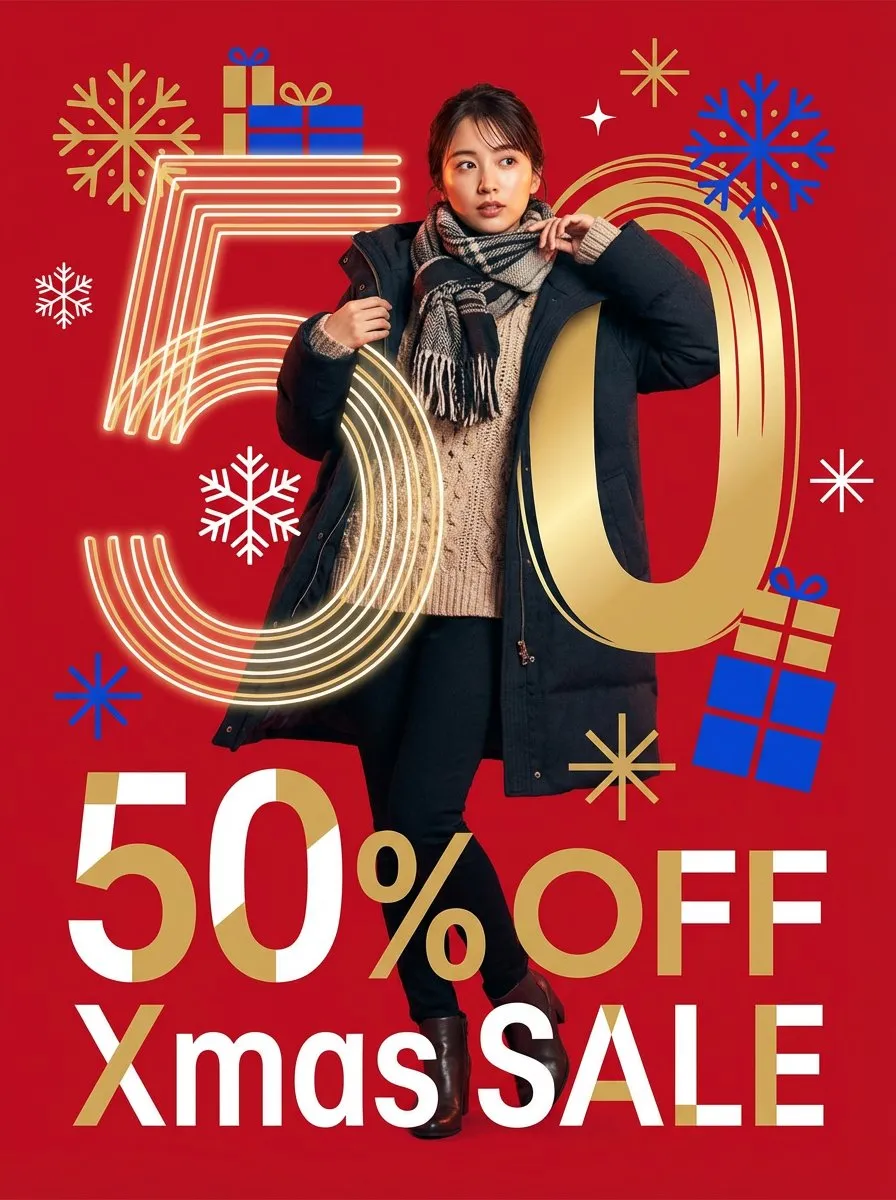
Create posters, diagrams, packaging, and title cards with words built into the composition. Nano Banana Pro and GPT Image 2 are the strongest choices when the copy needs to stay readable.
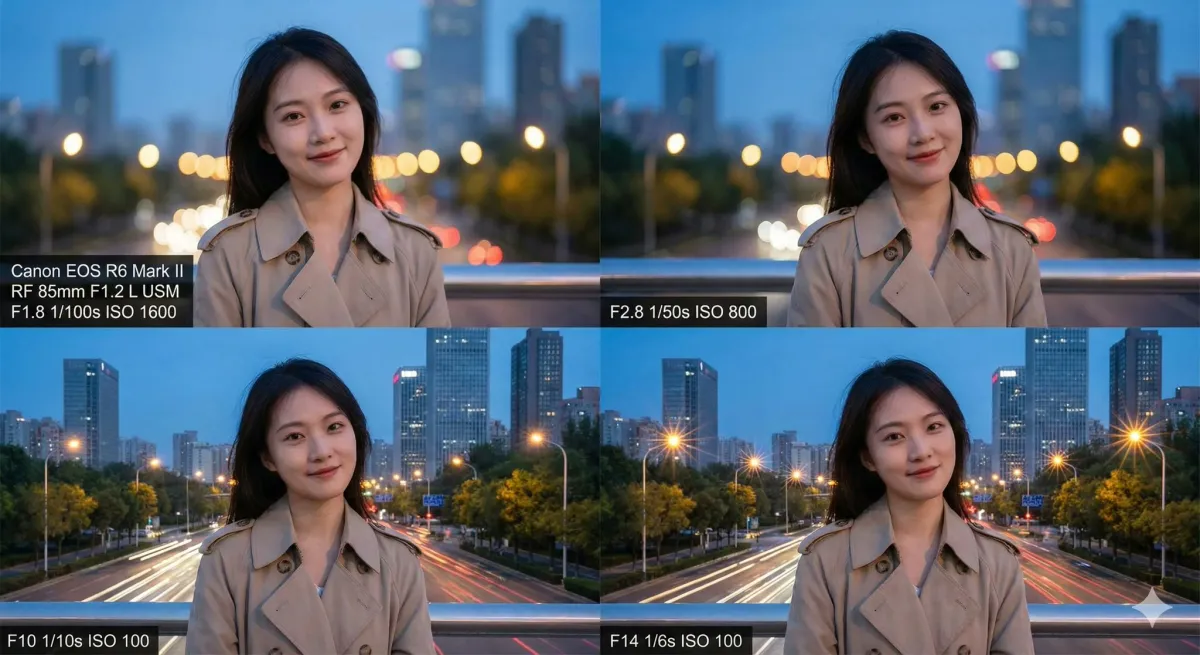
Compose for the final frame
Choose square, portrait, landscape, or widescreen before generation so the subject, negative space, and layout are designed for the destination instead of cropped into it afterward.
Text-to-Image FAQ
Answers about creating AI images from text, writing prompts, credit costs, commercial use, and supported formats.
What is a text-to-image generator?
A text-to-image generator creates an image from a written prompt. Describe the subject, composition, lighting, and style, then select an image model to generate the result.
How do I create an AI image from text?
Enter a prompt that describes the subject, style, setting, composition, and lighting. Choose a model and aspect ratio, then generate. You can edit the prompt and run it again to refine the result.
How many credits does text-to-image generation use?
Credit usage depends on the selected model and settings. Check the cost displayed in the generator before submitting, and visit Pricing for available plans and credit packs.
Can I use AI-generated images commercially?
You can use generated images for personal or commercial projects, subject to the terms of the selected model provider and this site's terms of service. Review both before publishing paid work.
How do I write good text-to-image prompts?
Start with the main subject, then add the setting, style, composition, lighting, color palette, and important details. Put exact wording in quotation marks when the image needs visible text.
Which image sizes and aspect ratios are supported?
The generator supports 1:1, 4:3, 3:4, 16:9, 9:16, 21:9, and 9:21, plus an automatic option. These formats cover profile images, social posts, presentations, banners, and phone wallpapers.
Create an AI Image from Text
Write a prompt, choose a model and format, and generate your first image online.